
Format CMS - Integration / Setup
In this article, you'll learn how to translate all your content and make your Format site multilingual within minutes.
Step 1: Create a Weglot account
Sign up for Weglot, confirm your email, name your project in the dashboard, then select “Format” as the website technology.

Step 2: Add your new languages
Choose your website's original language and the languages you want to translate your website into.

Step 3: Add Weglot to Format
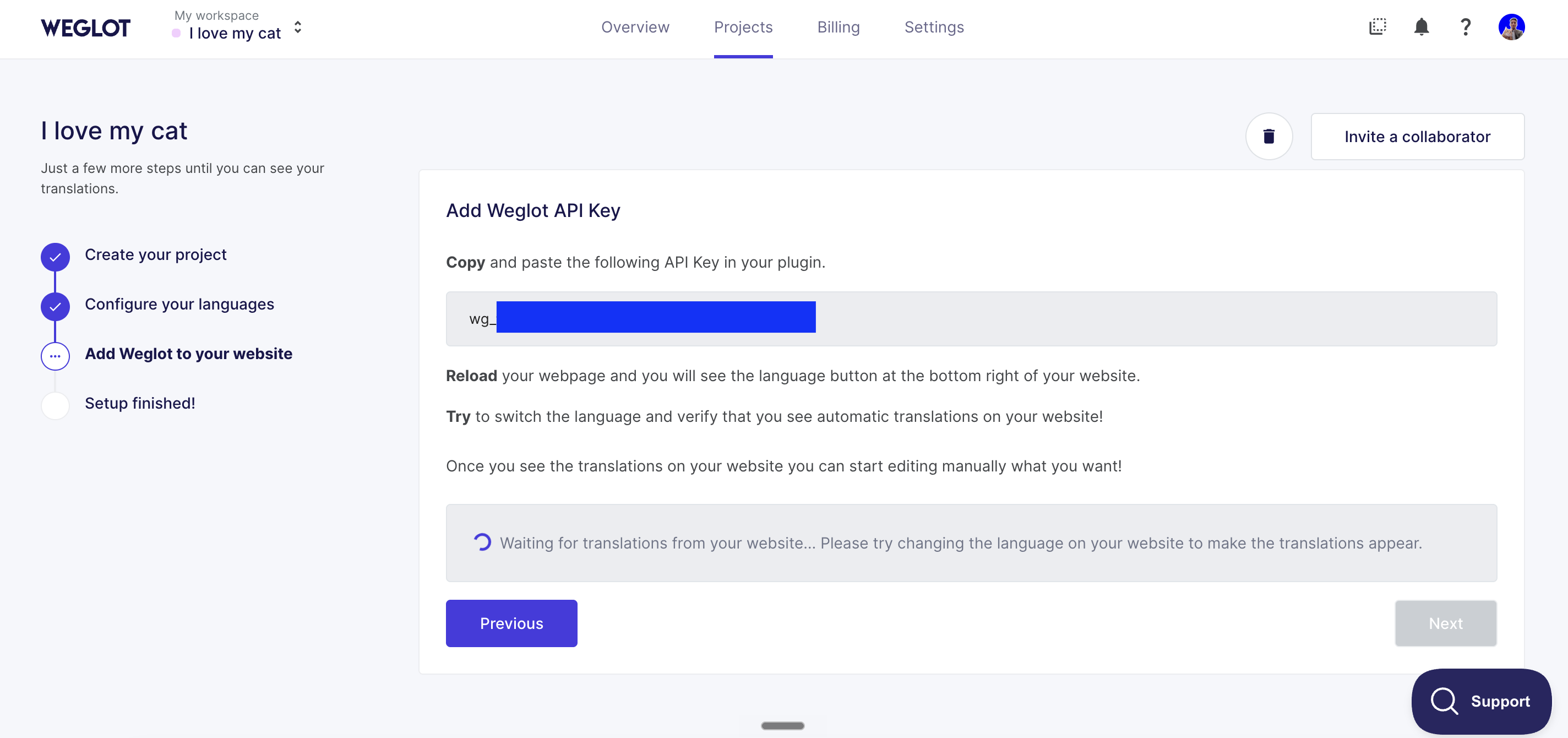
Copy and paste the Weglot API key provided in your dashboard into Dorik .
In your Format site dashboard, go to “Site Settings”, then "Translate with Weglot", click on "Configure" and add the Weglot API key.

NB: Don't forget to click the “Connect to Weglot” button!
Your website is now translated!

You've now successfully translated your website. Go to your website, and you'll see a language switcher at the bottom right of your site (it may take a few minutes to appear). You can also change its position - check out our guide to find out how.
Weglot provides you with a first layer of translation. To view them, log in to your Weglot account and go to your Dashboard> Translations > Languages. Here, you can review and manually edit all your translations.
If you need help adding Weglot to your Format site, don't hesitate to reach out to us at support@weglot.com.